
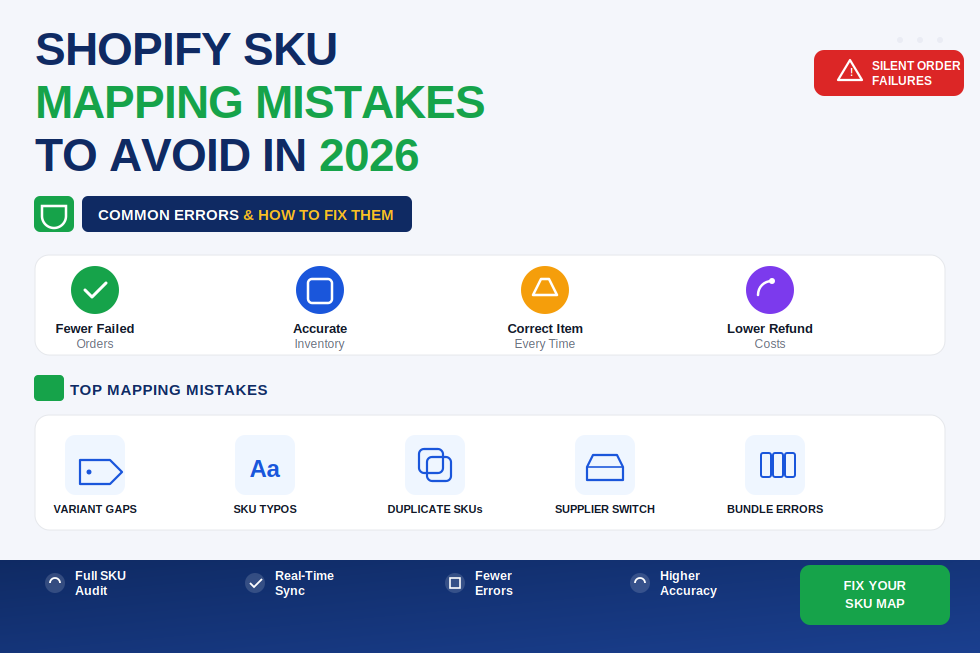
Shopify SKU Mapping Mistakes When Using a China Fulfillment Center
A perfectly placed order can still ship the wrong item, to the wrong quantity, or not ship at all and the cause is almost always the same invisible step: SKU mapping. Here's where it breaks and how to fix it.
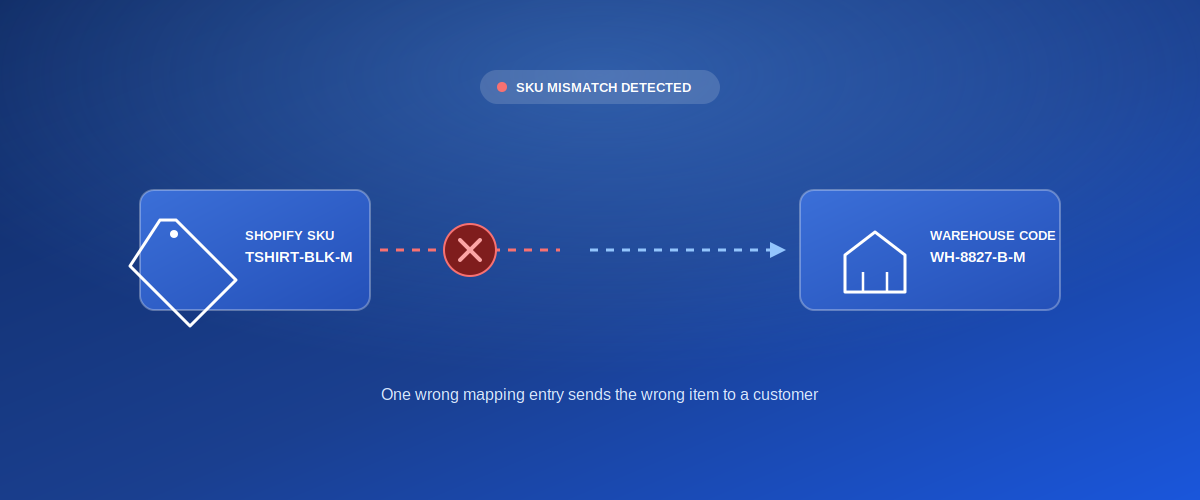
Most fulfillment problems people blame on "the warehouse" actually start much earlier in a spreadsheet cell where a Shopify SKU gets matched to the wrong item code. SKU mapping is the invisible translation layer between your storefront and your fulfillment center's inventory system, and when it's wrong, everything downstream looks broken even though the warehouse did exactly what it was told.
This is one of the most common and most preventable sources of fulfillment errors for Shopify sellers working with a China-based warehouse. Here's where mapping breaks, why it matters more as you scale, and how to keep it clean.
TSHIRT-BLK-M) has to be matched to the exact item code your fulfillment center uses internally (e.g. WH-8827-B-M). If that match is wrong, missing, or ambiguous, the warehouse either ships the wrong thing or can't fulfill the order at all.
📋 Table of Contents
Why SKU Mapping Errors Are So Costly
A wrong SKU mapping doesn't show up as an error message it shows up as a wrong package at a customer's door, or an order stuck in limbo because the warehouse system can't find a matching item at all. Because the order itself looks completely normal on the Shopify side, these issues are often invisible until a customer complains, which means they can quietly repeat for days before anyone notices the pattern.
Wrong Item Shipped
Customer receives the wrong variant or product entirely
Order Fails Silently
No matching warehouse code means the order never enters the pick queue
Inventory Drift
Stock counts stop reflecting reality on one or both sides
Refunds & Re-Ships
Every mis-shipped order costs a replacement plus return shipping
The Most Common SKU Mapping Mistakes
-
Auto-Generated Shopify SKUs Left Unedited
When SKUs are left as Shopify's default auto-generated string, they carry no meaningful reference to the warehouse's own coding system, forcing manual guesswork on every new mapping entry.
-
Duplicate SKUs Across Variants
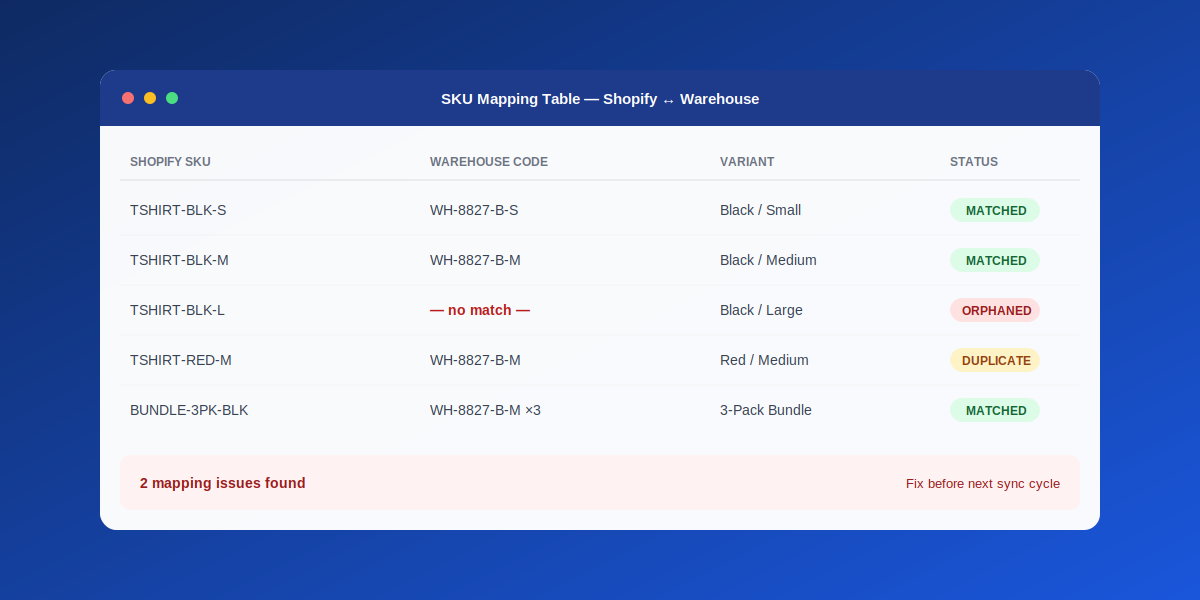
Two different variants (say, a small and a medium of the same shirt) accidentally sharing one SKU means the warehouse can't tell which physical item to pick one of them will always be wrong.
-
Mapping Table Not Updated After a Catalog Change
Renaming a product, changing a variant option, or bulk-editing SKUs in Shopify without updating the corresponding warehouse mapping leaves an orphaned entry that silently fails on the next order.
-
Bundle and Multi-Pack SKUs Mapped as Single Items
A "3-pack" SKU that isn't correctly mapped to pull 3 units of the base item results in customers receiving a single unit instead of the bundle they paid for.
-
Case-Sensitive or Whitespace Mismatches
A SKU stored as
tshirt-blk-min one system andTSHIRT-BLK-M(with a trailing space) in another can fail an exact-match lookup even though they look identical to a human eye.
The Variant Trap: Size, Color, and Bundles
Most SKU mapping failures don't happen on simple single-variant products they happen on products with size, color, or bundle variants, where the number of possible SKUs multiplies fast. A shirt with 4 colors and 5 sizes is already 20 SKUs to map correctly, and a single wrong entry among them is easy to miss during a manual review.
How to Audit Your SKU Mapping
- Export both sides — pull your full Shopify SKU list and your warehouse's item code list into one sheet, side by side
- Check for duplicates — flag any SKU that appears more than once on either side
- Check for orphans — a Shopify SKU with no warehouse match, or a warehouse code with no Shopify match, both signal drift
- Place test orders — order one unit of a sample from each product line and confirm the correct variant physically arrives
- Verify bundles separately — multi-packs and kits need their own explicit check since they map to multiple units of a base SKU
How to Prevent Mapping Drift as You Scale
What Causes Drift
- Adding products without notifying your fulfillment partner
- Editing SKUs directly in Shopify after mapping is set
- Bulk CSV imports that overwrite existing SKU fields
- Multiple team members editing the catalog independently
How to Prevent It
- Treat SKU format as fixed once mapped don't edit after launch
- Notify your fulfillment agent before any bulk catalog change
- Keep one shared, versioned mapping sheet as the source of truth
- Re-audit mapping monthly or after any product line change
Pre-Launch SKU Checklist
| Check | Why It Matters |
|---|---|
| SKU format is consistent and human-readable | Makes manual review possible when something looks off |
| No duplicate SKUs across variants | Prevents ambiguous picks at the warehouse |
| Bundles mapped to correct unit quantities | Stops multi-packs shipping as single units |
| Mapping table matches current live catalog | Catches orphaned entries from past edits |
| Test order placed for each product line | Confirms mapping in practice, not just on paper |
Want Your SKUs Mapped Correctly From Day One?
OneShipPros handles SKU mapping, variant tracking, and bundle configuration as part of every Shopify integration so your orders reach the right item, every time.
Get Started with OneShipPros →